AI IntelliSearch Step-by-Step Guide
Search your footage using natural language — powered by AI. Here's how to set it up in minutes.
Part 1 — Download IntelliSearch
Step 1: Open DaVinci Resolve 21
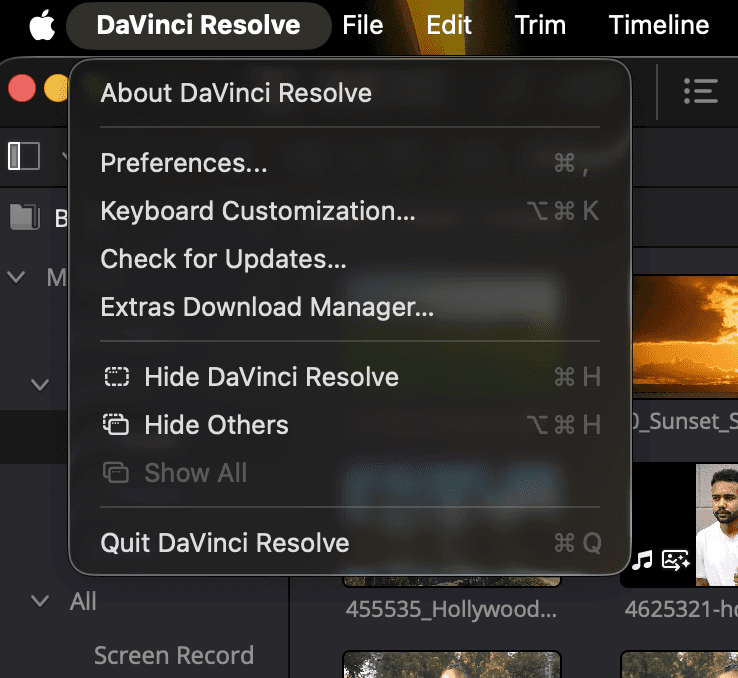
Launch the app, then go to the top menu bar. Click DaVinci Resolve (Mac) or Help (Windows) → Extras → Download Manager.
Step 2: Choose & Download Your IntelliSearch Model
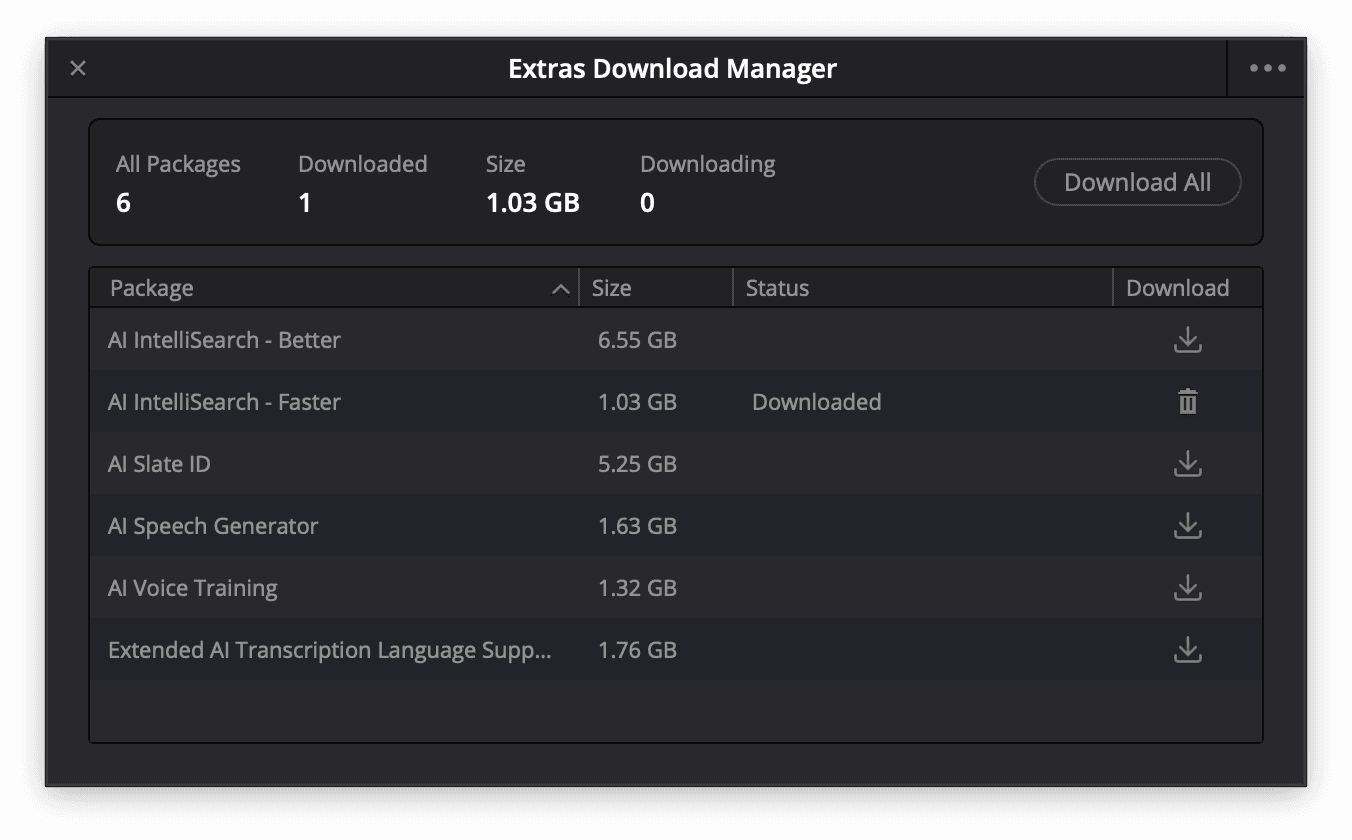
The Extras Download Manager will open. You'll see two options:
AI IntelliSearch – Better → Higher quality results · 6.55 GB
AI IntelliSearch – Faster → Quicker analysis · 1.03 GB
Click the download icon next to your preferred model.
Part 2 — Method 1: Via Right-Click
Step 1: Right-Click Your Bin
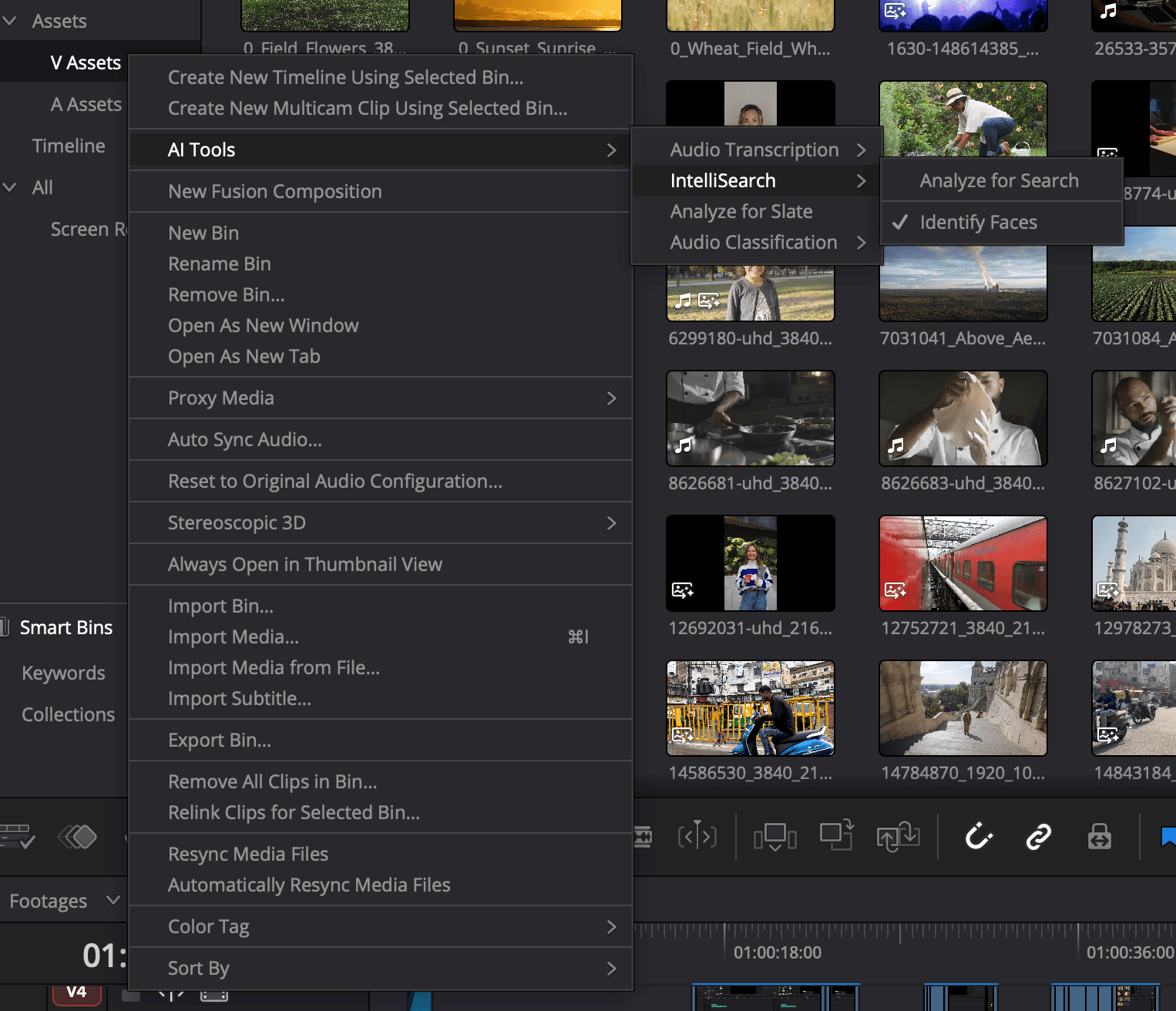
In the Media Pool, right-click on any Bin. From the context menu go to AI Tools → IntelliSearch → Analyze for Search. DaVinci will begin analyzing all clips in that bin automatically.
Part 2 — Method 2: Via AI Button
Step 1: Click the AI Clip Analysis Icon
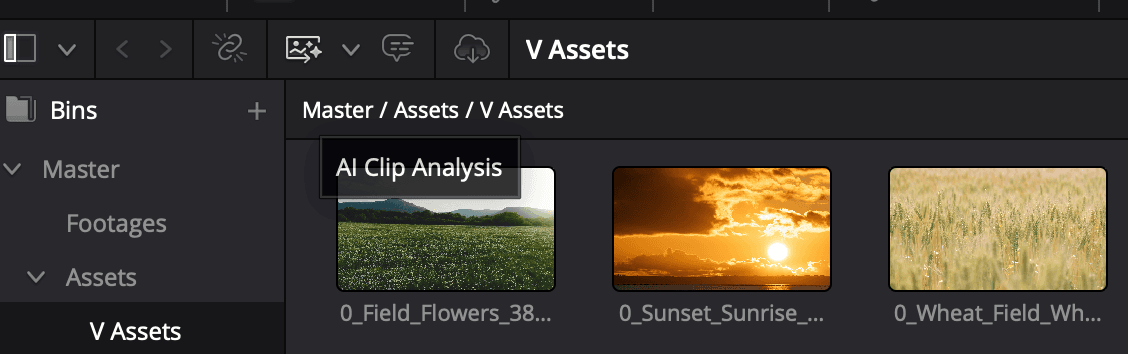
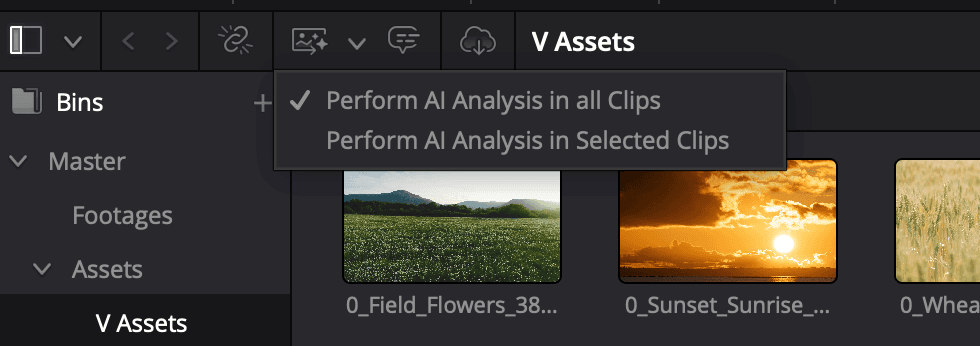
In the Media Pool toolbar at the top of the bin panel, click the AI Clip Analysis icon.
Step 2: Choose All Clips or Selected Clips
A dropdown appears with two options. Choose Perform AI Analysis in all Clips to analyze everything, or Perform AI Analysis in Selected Clips if you've pre-selected specific footage.
Step 3: Configure AI Clip Analysis Settings
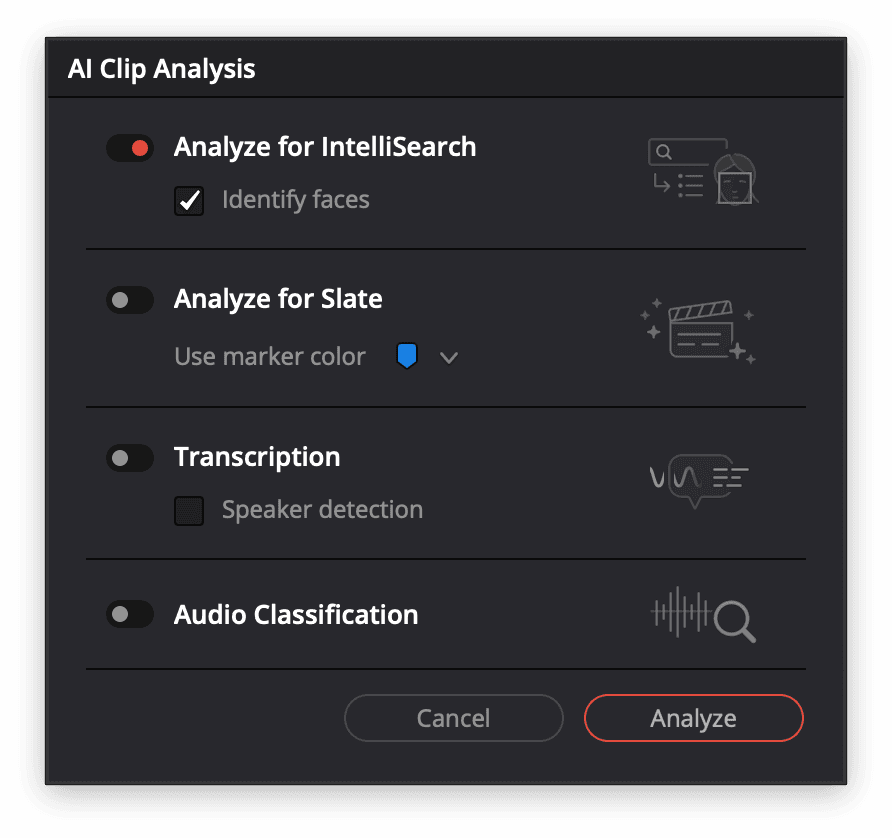
The AI Clip Analysis dialog opens. Toggle on Analyze for IntelliSearch. Optionally enable Identify Faces if you want to search footage by person. Click Analyze when ready.
Step 4: Analysis in Progress
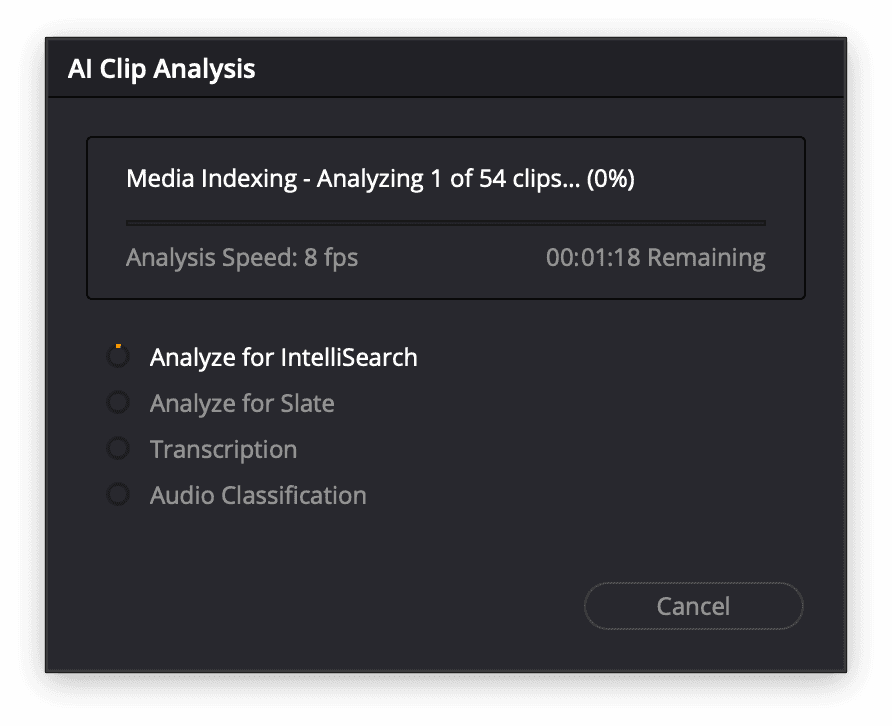
DaVinci Resolve will begin indexing your media. Once complete, go to your bin's search bar and type a natural language description like "sunset over mountains" or "person talking to camera" — IntelliSearch will surface the matching clips instantly.
Bonus Tip — Analyze Selected Clips Only
Step 1: Select Your Specific Clips
In the Media Pool, click to select the clips you want to analyze. Hold Cmd (Mac) or Ctrl (Windows) to select multiple clips.
Step 2: Run AI Analysis on Selected Only
Click the AI Clip Analysis icon → choose Perform AI Analysis in Selected Clips → enable Analyze for IntelliSearch → click Analyze. Only your selected clips get processed — saving time on large libraries.

You’ve Scrolled Enough.
Now It’s Time to Create.
15 weeks from now, you could still be scrolling… or editing videos that make people stop scrolling.