Access 25 Terabyte (TB) For Free in 3 Steps
Step 1: Open Microsoft 365 and Log In
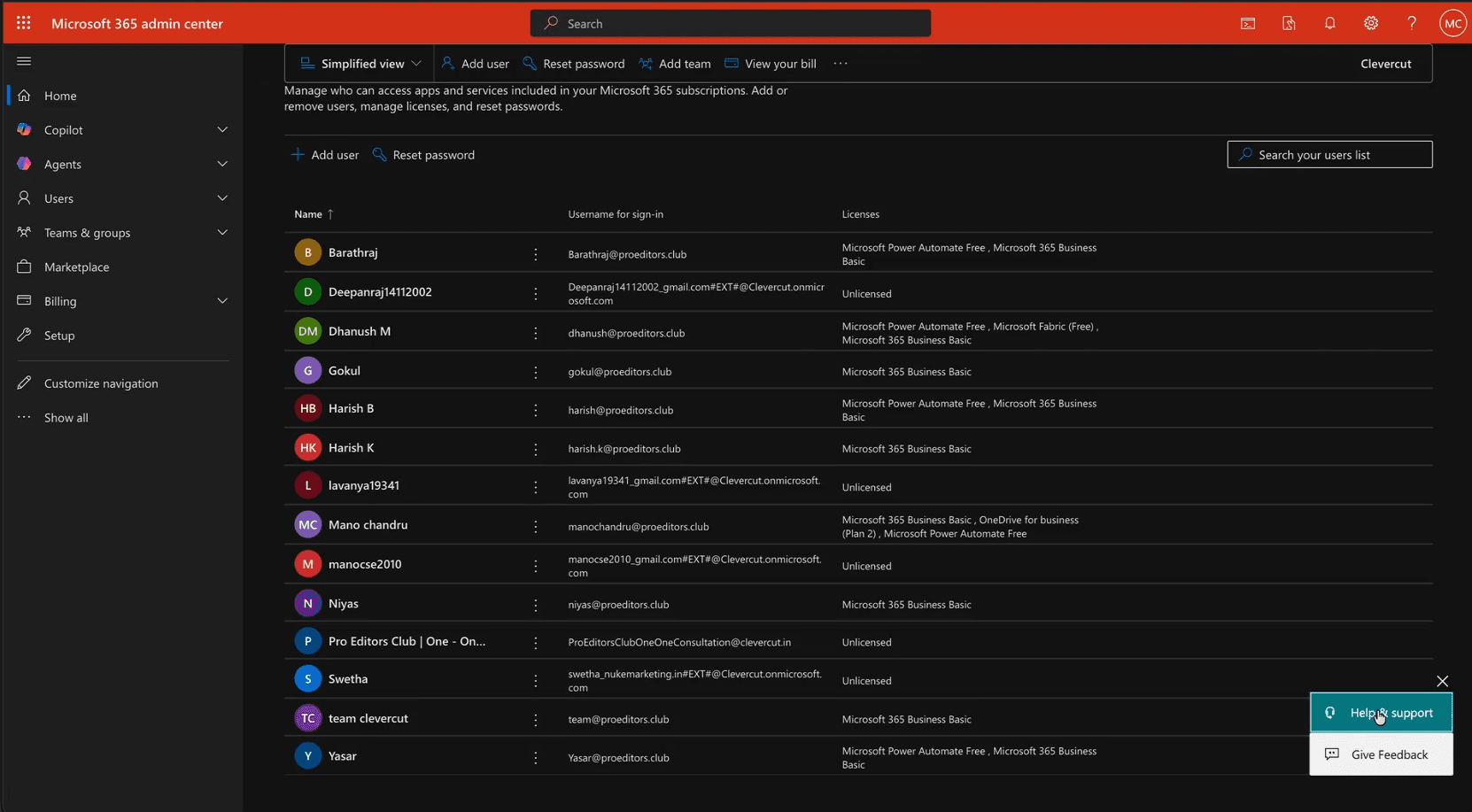
Go to Microsoft 365 and sign in with your business account.
Step 2: Access Help & Support and Request the Upgrade
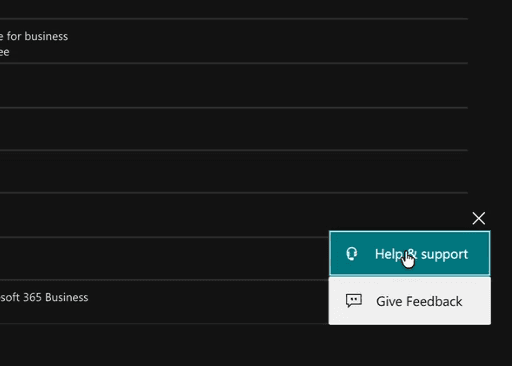
Navigate to Help & Support and chat with the support team. Ask them to extend your storage to 25TB.
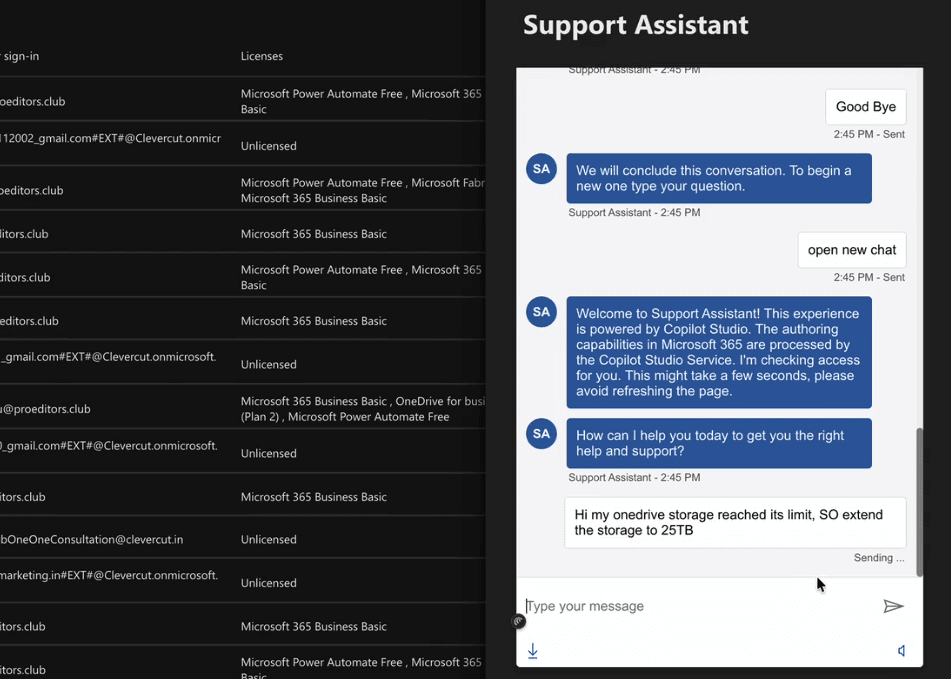
This is included in your existing Plan 2 subscription, so there's no additional charge.
Step 3: Enter Your Mail ID to Run Diagnosis
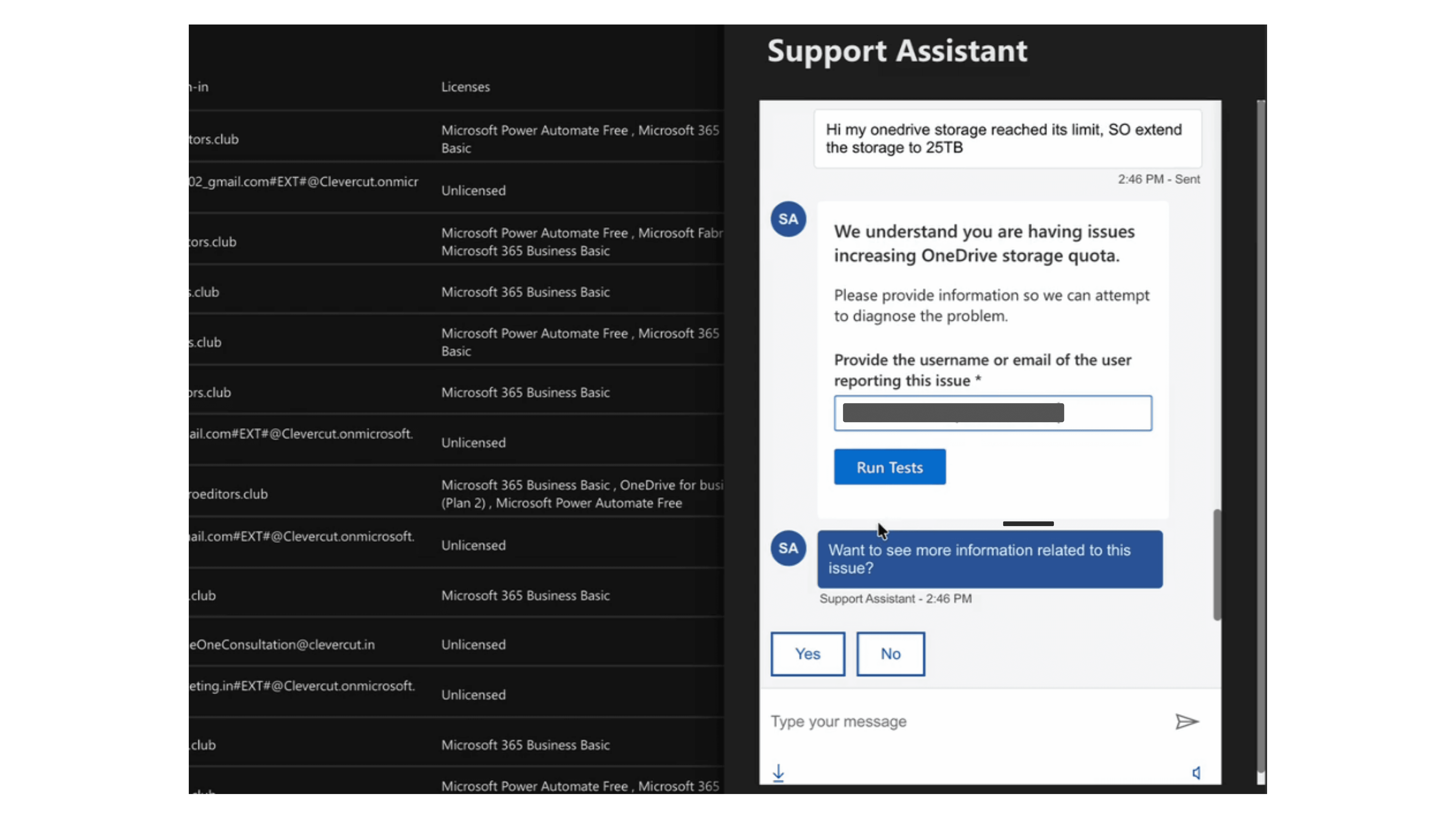
The support team will ask for your Mail ID to verify your account and run a diagnosis. Once done, your storage will be upgraded to 25TB automatically.
NOTE: To Access 25 TB for Free you should have a OneDrive for Business Plan 2 subscribed already.

Access 25 Terabyte (TB) For Free in 3 Steps
Step 1: Open Microsoft 365 and Log In

Go to Microsoft 365 and sign in with your business account.
Step 2: Access Help & Support and Request the Upgrade

Navigate to Help & Support and chat with the support team. Ask them to extend your storage to 25TB.

This is included in your existing Plan 2 subscription, so there's no additional charge.
Step 3: Enter Your Mail ID to Run Diagnosis

The support team will ask for your Mail ID to verify your account and run a diagnosis. Once done, your storage will be upgraded to 25TB automatically.
NOTE: To Access 25 TB for Free you should have a OneDrive for Business Plan 2 subscribed already.
You’ve Scrolled Enough.
Now It’s Time to Create.
15 weeks from now, you could still be scrolling… or editing videos that make people stop scrolling.